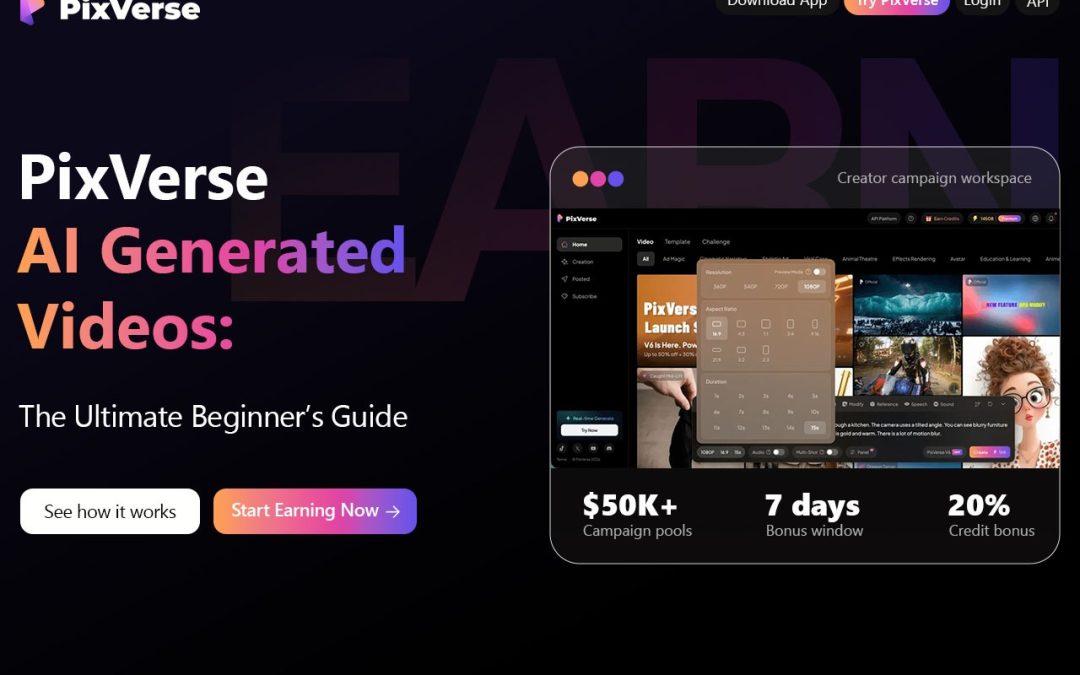
Remember when making a video involved bringing along a camera, lighting the shoot, and spending a whole weekend editing? These days, you can type a sentence and watch it turn into a moving clip. That’s the idea behind the PixVerse AI video generator, and it’s surprisingly fun to play with.
If you’ve been curious about AI video creation but have no idea where to begin, this guide is for you. I’ll walk you through what the tool does, how to use it, and a few tips I’d share with a friend.
What Is the PixVerse AI Video Generator?
Put simply, PixVerse AI is a platform that turns words and pictures into short video clips. You describe a scene or upload a photo, and the AI builds the motion for you. Think “a neon-lit street in the rain” or “a sneaker slowly rotating on a marble table.” No filming needed.
It belongs to a growing group of AI video tools that creators, marketers, and small business owners use to speed up their content. You can explore it on PixVerse.
Key Features You Should Know About
Here are the best features for the PixVerse AI video creator that make your videos more creative:
- Text to Video AI
This is the classic workflow. You write a prompt, and the platform generates a clip from it. Be specific about the subject, setting, lighting, and camera movement, and you’ll usually get better results. It works well for social media clips, concept ideas, and quick storytelling. Think of text-to-video AI as a sketchbook for moving images.
- Image to Video AI
Got a travel photo, an illustration, or a product shot? Upload it, add a short instruction like “clouds drifting slowly,” and your still image comes alive. Image-to-video AI is a smart way to get more mileage out of visuals you already own.
- Extra Creative Options
Depending on the model and your account, you may also see options like video extension, transitions, or audio-related features. These change over time, so check the platform to see what’s currently available to you.
How to Use the PixVerse AI Video Generator
Getting started is easier than you’d think. Here’s the simple path:
Step 1: Open the website- PixVerse site and sign up or log in.
Step 2: Pick your start point- choose text if you’re starting from an idea, or image if you already have a visual to animate.
Step 3: Write a clear prompt- include the subject, what it’s doing, the setting, the lighting, the camera movement, and the mood.
Step 4: Adjust the settings- choose an aspect ratio, duration, and resolution that fit where the video will live. Vertical works well for Reels and TikTok, while horizontal suits YouTube and widescreen viewing.
Step 5: Generate and review- don’t panic if the first result looks off. Even experienced creators go through a few rounds with the PixVerse AI video generator. Tweak the prompt, run it again, and compare.
Step 6: Export and share- Once you’re happy, export the clip. Before you publish, check any watermark, usage, and licensing rules that apply to your plan.
Tips for Better Results
A little prompt polish goes a long way. Here’s what tends to help:
- Describe the movement- say whether the subject should walk, turn, fly, or transform. Vague prompts get vague motion.
- Guide the camera- phrases like “slow zoom,” “close-up,” “tracking shot,” or “aerial view” give the AI a clear direction.
- Set the mood- mention lighting, colors, and weather. “Foggy morning, muted tones” gives you a very different clip than “bright midday sun.”
- Keep it focused- stuffing five unrelated actions into one prompt usually confuses the result. One clear action beats a messy pile.
- Experiment with variations- Every AI video generator has its quirks, so try a few versions of the same idea and keep the best one.
If you’re making several clips for one project, reuse the same character descriptions and visual style so everything feels connected.
Who Can Use PixVerse AI?
Pretty much anyone with a creative idea and a few minutes to spare. Here’s who I think gets the most out of it:
- Content creators: If you’re always hunting for fresh visuals for YouTube, Instagram, or TikTok, you can try out ideas without setting up a full shoot.
- Digital marketers: Want to test an ad concept or a product teaser? You can sketch it out with the PixVerse AI video generator first, before spending real money on production.
- Small business owners: Working with a tight budget? You can try out product visuals and short promo clips without hiring a crew.
- Freelancers and designers: Instead of showing a client a flat slide, you can show them a moving concept. It makes your ideas much easier to picture.
- Teachers and educators: Need something eye-catching for a lesson, presentation, or online course? A short clip can make a topic feel a lot more lively.
How good is PixVerse AI Video Generator?
In my view, yes, especially if you’re new to AI video creation. The PixVerse AI video generator gives you easy entry points: type an idea or upload an image, and you’re already experimenting. That said, let’s be realistic. Odd movements, small visual glitches, or elements that don’t fit your prompt might be present in AI videos. It may take a few tries and some editing to get it to look the way you see it in your head. Also, check the current pricing and account limits before committing to a plan, since these can change.
Final words
PixVerse AI video generator won’t replace a full production crew, but it’s a good way to test ideas fast and bring your imagination to life. Among today’s AI video tools, it’s a friendly place to start, whether you’re making social content, product promos, or creative stories. The best advice? Start small. Write a simple prompt, look at what comes back, and improve it step by step. Ready to try it? Head over to the PixVerse AI video generator and turn that first idea into a clip.
FAQs
- What is the PixVerse AI video generator?
PixVerse AI video generator is an AI-powered tool that creates videos from text prompts and images. It helps content creators, marketers, and beginners produce visual content for social media, advertising, and storytelling.
- How do you use PixVerse AI to create videos?
To use PixVerse AI, open its official website, access the video creation tool, enter a text prompt or upload an image, adjust the available settings, and generate your video. Review the result and refine your prompt if needed.
- Is PixVerse AI free to use?
PixVerse AI may offer free access with certain usage limits, while additional features or generation credits may require a paid plan. Check the official PixVerse website for current pricing and plan details.
- Can PixVerse AI convert images into videos?
Yes. PixVerse AI supports image-to-video generation, allowing users to animate still images with movement. This can be useful for creating animated photographs, product visuals, social media clips, and creative scenes.
- Can PixVerse AI generate videos from text?
Yes. Its text-to-video feature lets users describe a scene in a written prompt. The AI uses that description to generate a video, making it useful for visual storytelling, marketing concepts, and creative experiments.